

YouTube Publishes the Exact Spec. Almost Nobody Exports to It.
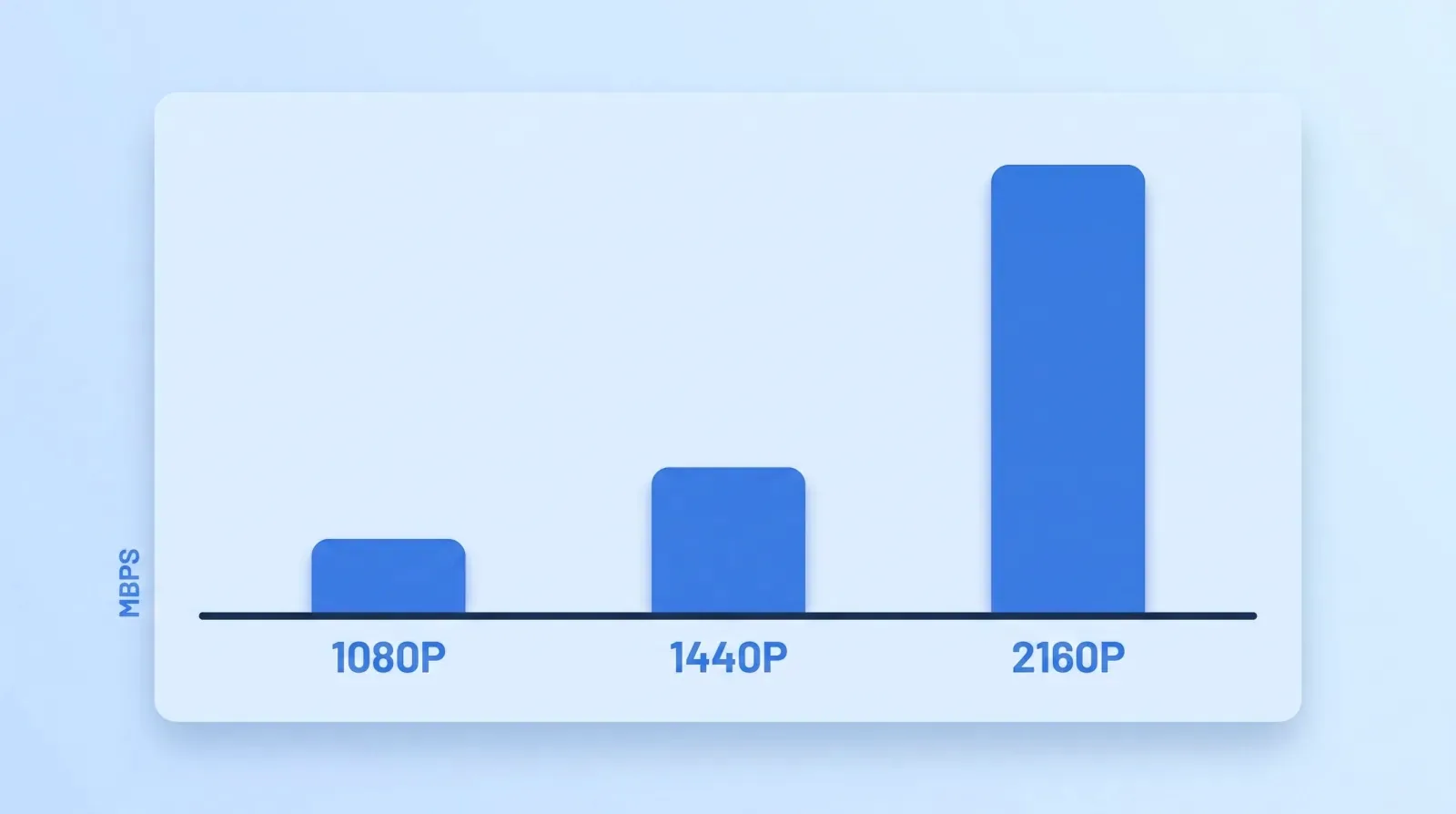
YouTube's recommended upload encoding settings put a 1080p upload at 8 Mbps and a 2160p upload at 35–45 Mbps at standard frame rate. That is more than five times the data budget for the same 16:9 rectangle. The same page specifies the container down to the byte order — "MP4, No Edit Lists, moov atom at the front of the file (Fast Start)" — the audio ("AAC-LC ... 48kHz", stereo at 384 kbps), and the GOP structure ("Closed GOP. GOP of half the frame rate"). It is not a style guide. It is an ingest spec, and it is public.
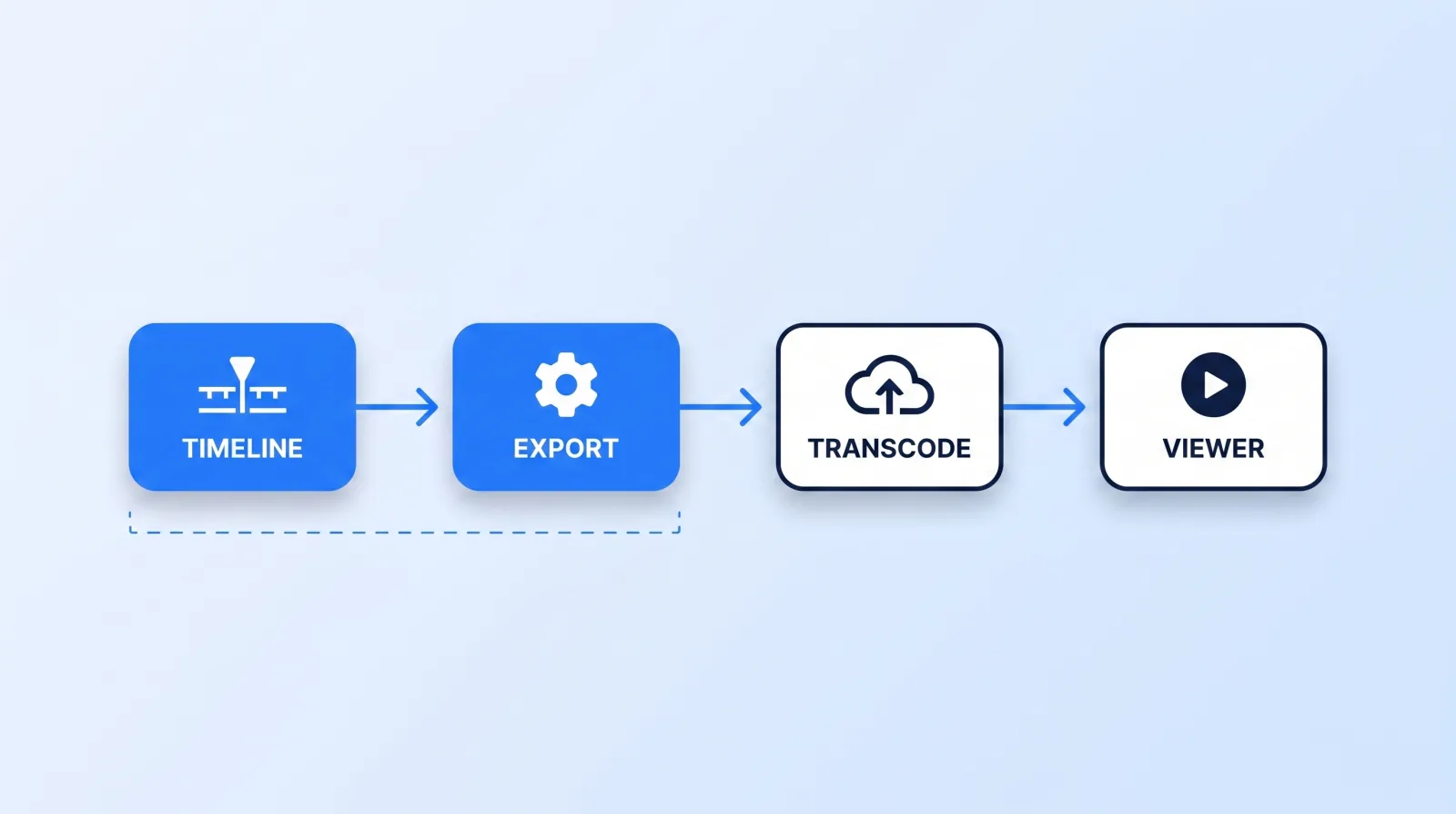
Here is the part that trips up almost every creator we onboard: the file you upload is never the file anyone watches. YouTube re-encodes every upload into its own ladder of renditions. Your export is not the finished product — it is the raw material handed to a transcoder you do not control, and everything you lose before that handoff is lost permanently.
Across 10,000+ projects at Mark Studios — the work behind 100M+ views — "it looked better in Premiere" is the single most common quality complaint we get, and it is almost never a grading problem or a camera problem. It is a five-line export dialog nobody read.
The Two Numbers That Decide Everything
Resolution and bitrate are the whole game. Everything else on the export screen is a rounding error by comparison. These are YouTube's published SDR recommendations:
| Resolution | Standard frame rate (24/25/30) | High frame rate (48/50/60) |
|---|---|---|
| 2160p (4K) | 35–45 Mbps | 53–68 Mbps |
| 1440p (2K) | 16 Mbps | 24 Mbps |
| 1080p | 8 Mbps | 12 Mbps |
| 720p | 5 Mbps | 7.5 Mbps |
To see what those bitrates mean in gigabytes for your video's length, use the video file size calculator: ten minutes of 1080p at 8 Mbps is about 629 MB with stereo audio.
Two things worth reading off that table. First, the jump from 1440p to 2160p is not linear with pixel count — YouTube is asking for disproportionate headroom at 4K because that is what its own encoder wants to work with. Second, high frame rate costs you roughly 50% more bitrate at every tier, which is the real price of shooting 60p for a talking-head video that has no motion in it.
If you are grading and delivering HDR, the ladder shifts up again — YouTube's HDR upload documentation is the reference there, and 480p and 360p are not supported for HDR at all.
Our house rule is simple: export at the top of the recommended range, not the bottom. Storage and upload time are cheap; a re-export after a client has already published is not.
Why We Export 4K Even When the Client Finishes in 1080p
This is the recommendation that gets the most pushback, so here is the honest version.
YouTube does not publish a codec-assignment policy, and anyone telling you they know the exact rule is guessing. What YouTube does publish, on that same encoding page, is this: "To view new 4K uploads in 4K, use a browser or device that supports VP9." Resolution and codec are linked on the delivery side, and the bitrate ladder above tells you the platform reserves its real quality headroom for the higher tiers.
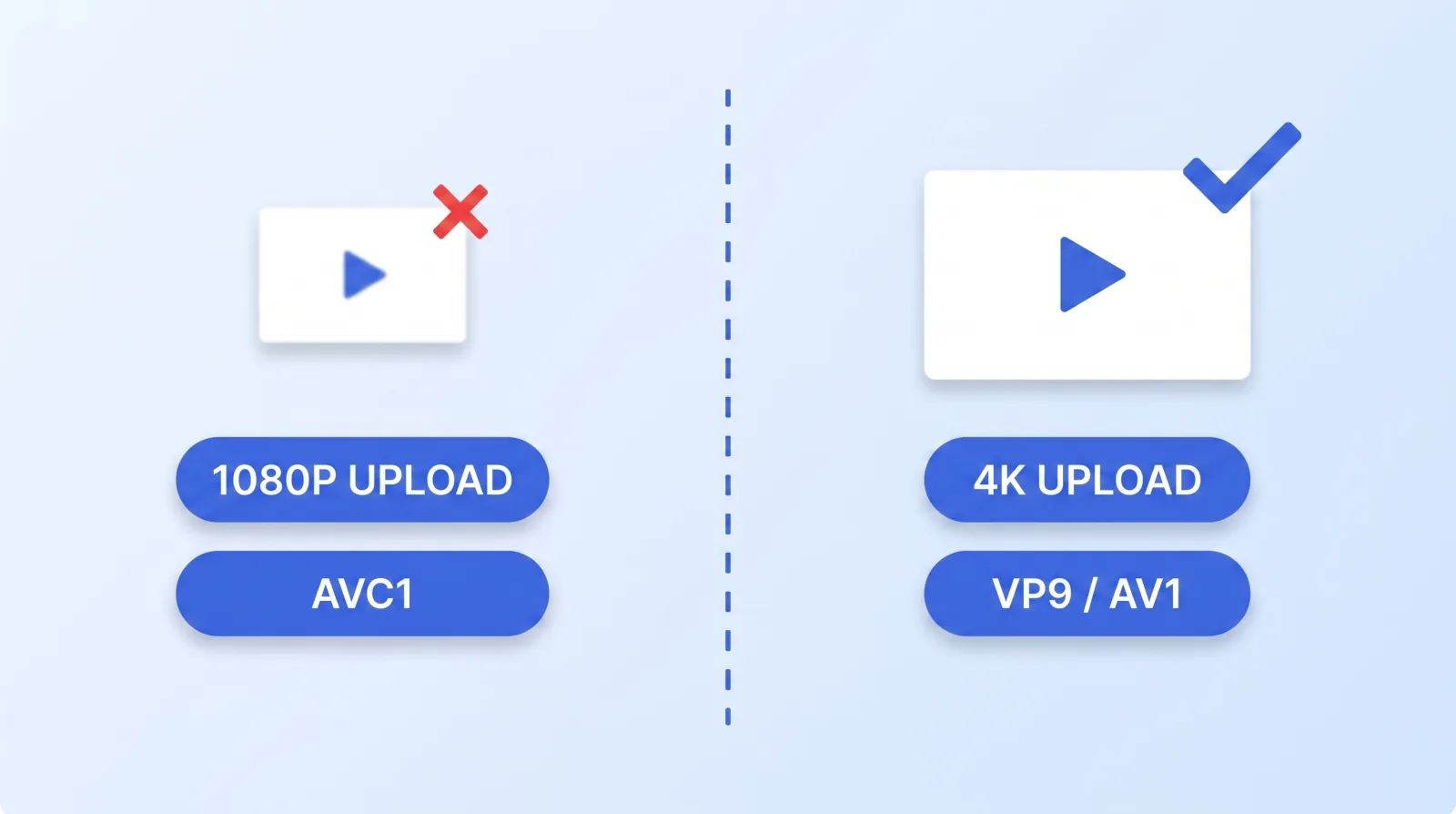
In our experience comparing the same finished timeline uploaded as a 1080p master and as a 4K master, the 4K upload's 1080p rendition holds fine detail — hair, fabric texture, film grain, gradients in a sky — noticeably better in side-by-side stills. The effect is largest on exactly the footage that compresses worst: heavy grain, confetti, water, smoke, and any colour grade with long, smooth gradients that band under low bitrate.
The caveat that matters: this only works if you actually finish at 4K. Upscaling a 1080p timeline to 2160p on export gives the transcoder more bits to spend on a picture that has no additional detail in it. That is not a quality gain, it is a bigger file.
The Container Settings Nobody Checks
Bitrate is the number people argue about. The container settings are where uploads quietly break — stalled processing, audio drift, a video stuck at 360p for twenty minutes after publishing.
Mapped directly to YouTube's published spec, an on-spec H.264 encode looks like this:
# One encode, straight to YouTube's published spec.
# GOP = half the frame rate: 12 for 24 fps, 15 for 30 fps, 30 for 60 fps.

ffmpeg -i master.mov \
  -c:v libx264 -profile:v high -preset slow -crf 16 \
  -pix_fmt yuv420p \
  -bf 2 -g 15 -keyint_min 15 -sc_threshold 0 \
  -color_primaries bt709 -color_trc bt709 -colorspace bt709 \
  -c:a aac -b:a 384k -ar 48000 -ac 2 \
  -movflags +faststart \
  upload.mp4
Every flag there is doing one job:
-profile:v highand-pix_fmt yuv420p— High Profile, 4:2:0 chroma subsampling, both named in the spec-bf 2— the "2 consecutive B frames" the spec asks for-g 15 -keyint_min 15 -sc_threshold 0— a closed GOP at half the frame rate-color_*flags — BT.709 tagging, which YouTube names as the standard SDR colour space. Untagged files get assumed into BT.709, and assumption is how a grade shifts between your NLE and the browser-movflags +faststart— this is the "moov atom at the front of the file" line, and skipping it is the most common cause of a slow, stuttering first playback-ar 48000— 48 kHz, not 44.1, no exceptions
If you would rather stay inside your NLE, both DaVinci Resolve and Premiere ship a YouTube preset that gets most of this right — but neither reliably sets Fast Start or your GOP length, so check those two by hand. We standardise the export preset for YouTube video editing the same way we standardise the NLE itself, and the preset file lives in the project template, not in an editor's head. The ffmpeg documentation is the reference if you want to script it into your delivery step.
One more rule, straight from the spec and constantly broken: "Content should be encoded and uploaded in the same frame rate it was recorded." Do not conform 24p footage to a 30p timeline on the way out. Deinterlace anything interlaced before it reaches the upload — 1080i60 should go up as 1080p30, not as an interlaced file YouTube has to guess at.
The Pre-Flight Export Gate
We run this before every delivery, and it takes about ninety seconds:
- ✅ Timeline resolution matches your source — no upscaled 1080p pretending to be 4K
- ✅ Frame rate matches how it was shot — no conform, no interlacing
- ✅ Bitrate at the top of YouTube's band for your resolution and frame rate
- ✅ Container is MP4 with Fast Start enabled (moov atom at the front)
- ✅ Audio is 48 kHz AAC-LC, stereo, 384 kbps — and check it in the file, not the dialog
- ✅ Colour space tagged BT.709 for SDR, or the HDR chain verified end to end
- ✅ Loudness checked before export, not after — see the sound design pass; YouTube normalises loud masters down and you never get that dynamic range back
- ✅ Play the exported file back full-screen once, start to finish, at the resolution people will watch it at
- ✅ Archive the master, not just the upload — the file management system decides whether a re-export in six months is an hour or a week
Item 8 is the one editors skip under deadline, and it is the one that catches dropped frames, a muted track, and the render artefact that only appears at full resolution.
Worth knowing: a fresh upload can look genuinely bad for the first several minutes while YouTube is still generating the higher-resolution renditions. Judge quality after processing completes, not thirty seconds after the progress bar fills. YouTube's upload documentation and its resolution guidance both cover the processing behaviour, and how YouTube works is worth a read for the delivery side of the pipeline.
The Bottom Line
YouTube tells you exactly what it wants — resolution, bitrate, codec, GOP, colour space, container, sample rate — on one public page that most creators have never opened. Your export is the last moment the picture is fully under your control, and every bit you decline to spend there is a bit the transcoder cannot give back.
Finish at the resolution you actually shot, export at the top of the recommended bitrate band, tag BT.709, turn on Fast Start, and watch the file back once before it leaves your machine.


