

The One Line in YouTube's Docs That Traps Channel Owners
Open YouTube's channel permissions documentation, find the row labelled Owner, and read the column headed "Not supported." It says the Owner can't transfer ownership to other users. The most powerful role on your channel — the only one that can delete it — cannot hand it to anybody.
That is not a footnote. If your channel runs on channel permissions and you ever need to move it to a business partner, a buyer, or a company entity, you have to opt out of permissions and convert back to a Brand Account first, which means stripping every role you set up and re-inviting everyone afterwards. Creators find this out in the middle of a sale, not before one.
Access is the part of channel management nobody designs on purpose. Across 10,000+ edited projects and 100M+ views, the most common way a channel owner still tries to onboard Mark Studios is the worst available option: a password pasted into a chat window. It takes four seconds, it works, and it is the reason this post exists.
Brand Accounts and Channel Permissions Are Two Different Systems
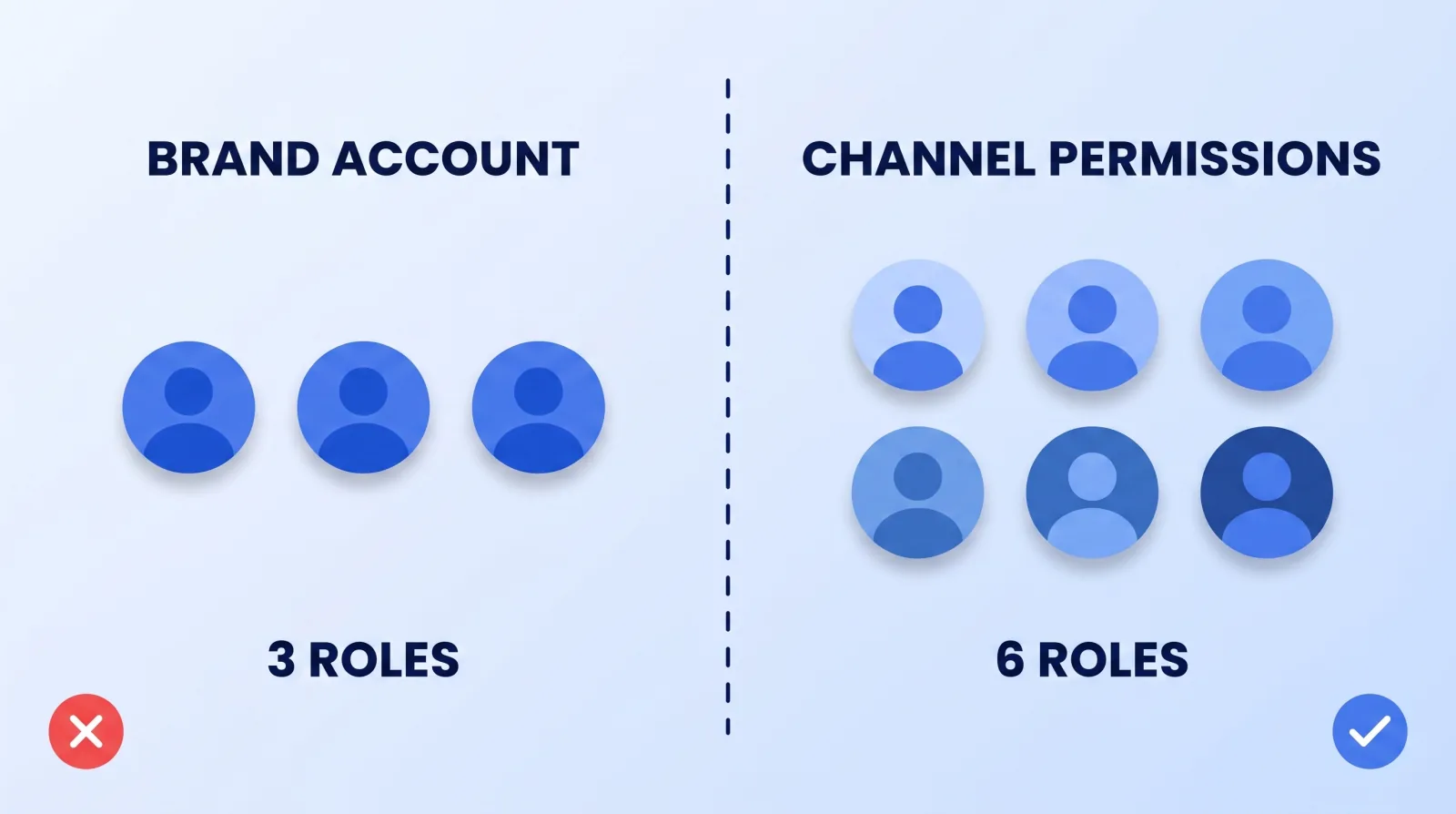
Most creators collapse two separate access layers into one idea, and that is where the mistakes start.
A Brand Account is a Google account for a business or brand that a YouTube channel can be linked to. Its delegation model is blunt: Owner, Manager, and Communications manager — and a Communications manager can't use YouTube at all, so in practice you get two useful roles. One person holds primary owner, and you can only take that title after having been an owner for seven days or more.
Channel permissions live inside YouTube Studio and replace those with six graduated roles beneath the Owner. YouTube's own guidance is to migrate from Brand Account user access to channel permissions, explicitly "to prevent security risks such as password sharing." Existing Brand Account users are copied across when you opt in, but nothing happens on its own — you set each person's level and send each invite by hand.
One Brand Account rule is worth taping to the wall: if you delete the primary owner account linked to your channel, the channel is deleted with it. That Google Account is not a spare login. It is the channel.
The Six Roles, and Which One Your Editor Actually Needs
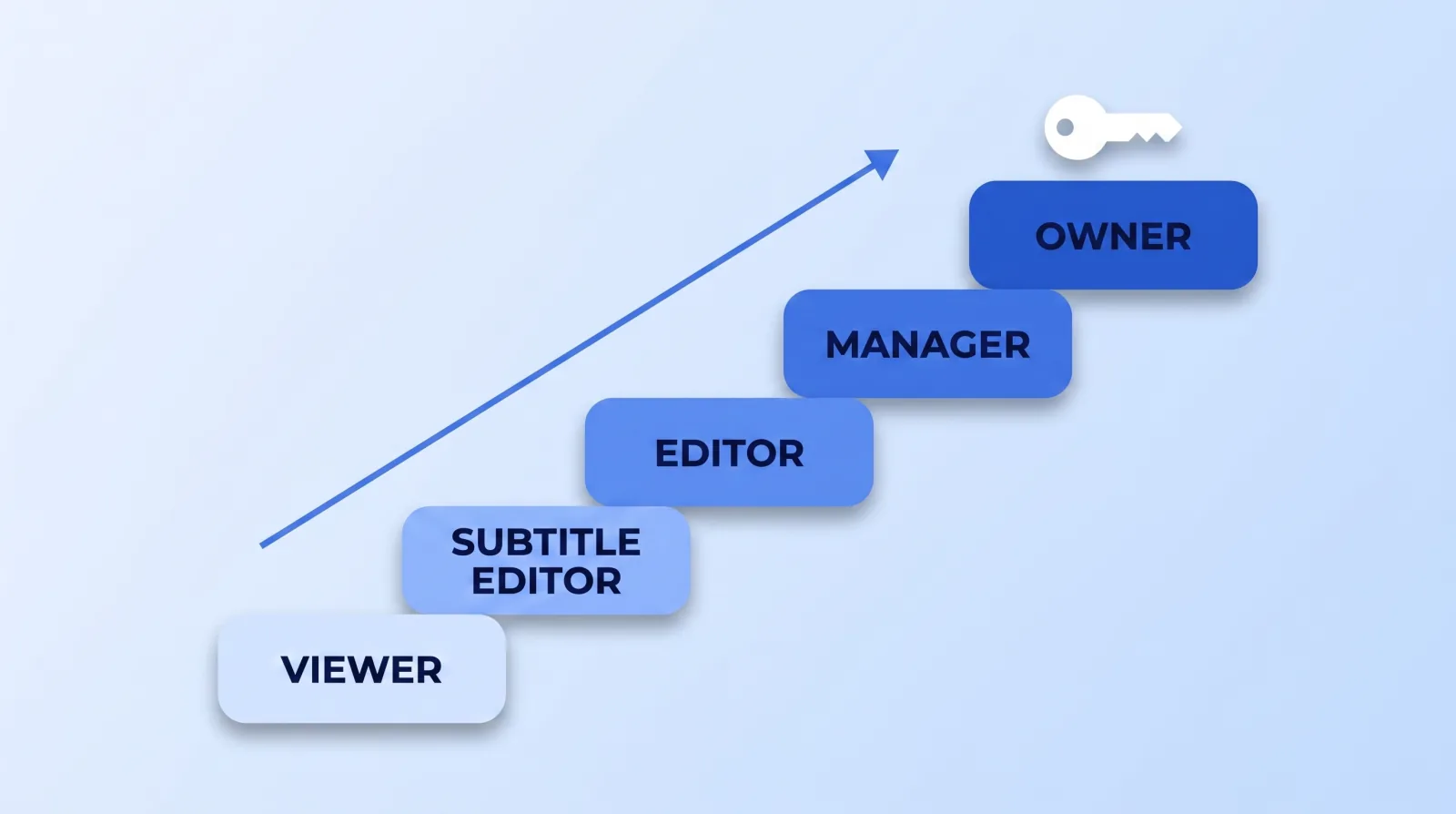
| Role | Give it to | What it unlocks | Where it stops |
|---|---|---|---|
| Owner | You, and nobody else | Everything, including deleting the channel and managing permissions | Can't transfer ownership to another user |
| Manager | A business partner or full-time channel lead | All channel data, plus inviting and removing other people in Studio | Can't delete the channel |
| Editor | Your in-house editor | Upload, publish, edit metadata, run live streams, moderate live chat, see revenue | Can't delete published content, manage permissions, enter contracts, or reset stream keys |
| Editor (Limited) | A freelance or agency editor | Everything Editor does | Same limits, plus no revenue data at all |
| Subtitle Editor | A translator or captioner | Add, edit, publish and delete subtitles on eligible videos | Nothing else — no uploads, no metadata, no analytics |
| Viewer | An accountant or a manager who reports on the channel | Read-only view of all channel details, including revenue | Can't edit anything or manage live streams |
| Viewer (Limited) | A strategist running an audit | Read-only view of everything except revenue | Same as Viewer, minus the money |
Editor (Limited) is the correct default for almost every outsourced editor, and it is the role we ask clients for. A freelance editor needs to upload, set metadata, build the end screen and hit publish. They do not need your RPM, your sponsorship revenue or your viewer activity tab — and neither of you benefits from that sitting on the table during a rate negotiation. The creative instructions belong in your video editor brief, not in a permission setting.
Subtitle Editor is the most under-used row in the table. Translation and captioning vendors get handed full Editor access constantly, when the job is exactly the one thing that role exists for.
What a Delegate Still Cannot Do
Four limits catch teams out, and all four are deliberate.
- No API access. YouTube states that people invited through channel permissions can manage the channel on YouTube and in Studio, on computer and mobile, but "can't manage via YouTube APIs". Any scheduler, bulk-metadata tool or analytics dashboard built on the YouTube Data API will not work for them. This surprises agencies more than anything else on the list.
- No stream key resets. An Editor can run your live stream but cannot delete or reset stream keys, and cannot delete scheduled, live or completed streams. If a key leaks mid-production, only you can rotate it — worth planning before you set up a multi-cam live production.
- No deleting published content. Editors can delete drafts, not published videos. That is a feature. It means a bad day for a contractor is not a catastrophe for your back catalogue.
- No contracts. Editors can't enter into contracts on the channel's behalf, which matters the moment a brand deal lands in an inbox your editor is monitoring.
How to Grant Access in Under Five Minutes
Do this once, properly, and you never share a password again.
- Sign in as the primary owner at
studio.youtube.com. Only the primary owner sees the option to move to channel permissions. - Go to Settings → Permissions. If a Move Permissions button is showing, you are still on Brand Account delegation — click it.
- Click Invite and enter the person's own Google Account email. Their working address, never a shared team inbox, because a shared inbox is a shared password by another name.
- Pick the narrowest role that lets them finish the job. Editor (Limited) for an editor, Subtitle Editor for a captioner, Viewer (Limited) for a consultant.
- Save and verify. YouTube may ask you to verify the account before the change sticks. The invitee then accepts by email and appears in your Studio permissions list.
- Write it down. Name, email, role, date granted, and who approved it — in the same document that holds your project brief. An access list that only exists inside YouTube Studio is an access list nobody audits.
Step 6 is the one that turns this from a task into a system.
Offboarding Is Where Channels Actually Get Lost
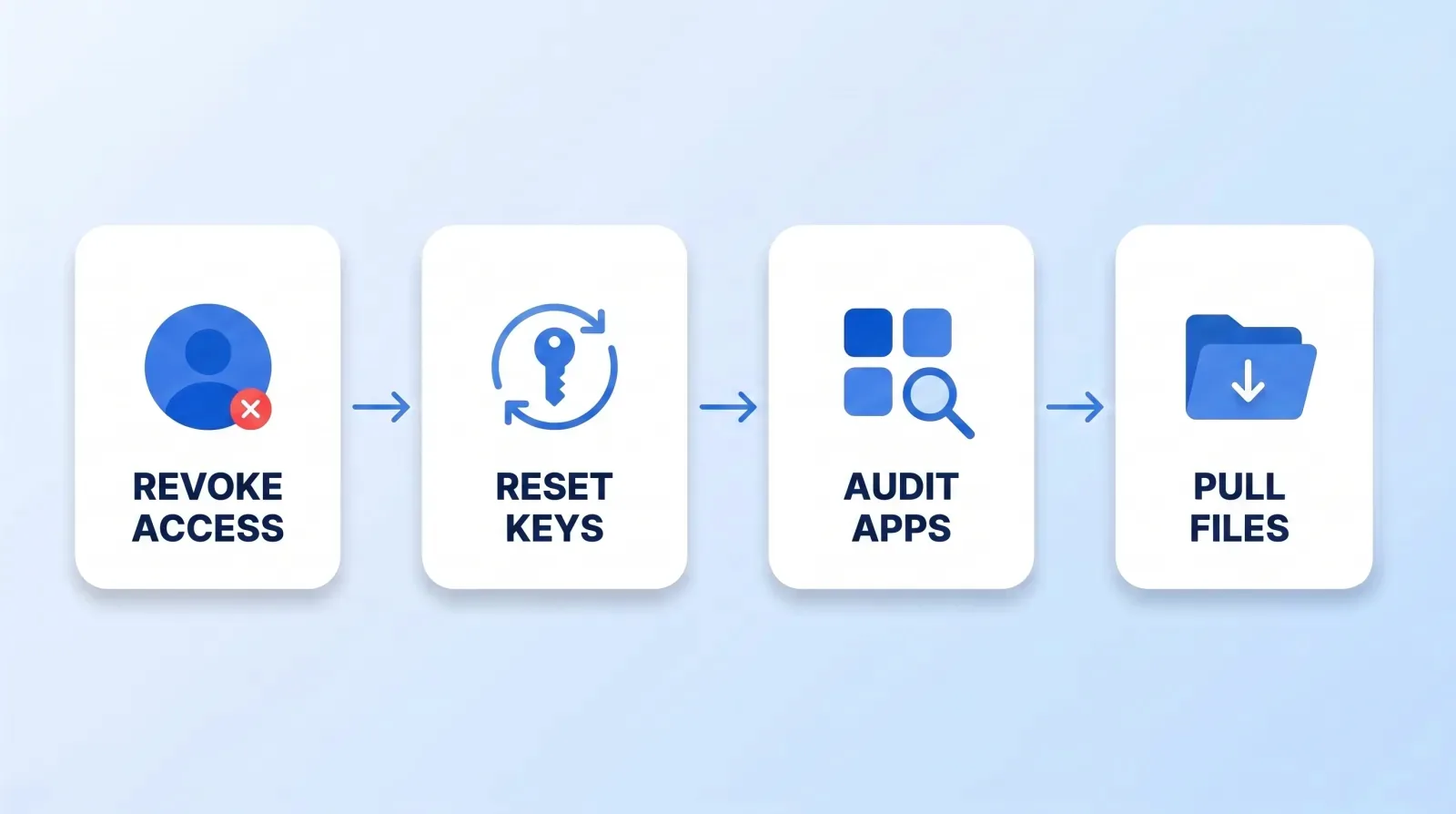
Every team we onboard has an access-granting habit. Almost none have an access-removing one. Contractors finish a project and quietly keep a live session to the channel for years.
The reason to be strict is not that editors go rogue — in five years of running a remote team, we have not seen it. It is that a dormant credential is a target. Google's Threat Analysis Group documented a multi-year campaign that lured YouTubers with fake sponsorship offers and stole session cookies to hijack their channels; in its 2021 write-up Google reported blocking 1.6 million phishing messages aimed at targets and restoring roughly 4,000 accounts. Cookie theft is a "pass-the-cookie" attack, which means it walks straight past multi-factor authentication. Every extra live session against your channel is another door — and recovering a hacked channel is a process you never want to run.
Run this on the day someone leaves, not the week after:
- ✅ Remove the person in Studio → Settings → Permissions
- ✅ Check the Brand Account owner list separately — it is a different screen and it does not update itself
- ✅ Reset the stream key if they ever went live, because they could not have done it themselves
- ✅ Review third-party apps connected to the owner Google Account and drop anything they set up
- ✅ Pull every project file out of their drive before access ends, into the structure from your file management system
- ✅ Rotate any password that was ever pasted into a chat, on any service
- ✅ Harden the owner account with 2-Step Verification or a passkey
Then put a recurring quarterly reminder on the permissions screen. If you are hiring and managing an editing team at any scale, that fifteen-minute review is the cheapest insurance you will ever buy.
The Bottom Line
Channel access is a design decision, not an afterthought, and YouTube already built the tool: six graduated roles that let you hand someone exactly the surface area their job needs and nothing more. The password in the chat window is not faster than that — it just moves the cost to the day the relationship ends.
Grant Editor (Limited) instead of a login. Write down who has what. And before you ever plan to sell or transfer the channel, remember that the Owner role cannot pass the keys — you have to convert back to a Brand Account first.


