Facebook Reels safe zone template
A transparent 1080 × 1920 overlay of the Facebook Reels safe zone, from Meta's own margins plus the button column we measured in the app. Lay it over your edit, then check a finished frame below.
- Free, no sign-up
- Your file stays on your device
- Specs checked October 10, 2026
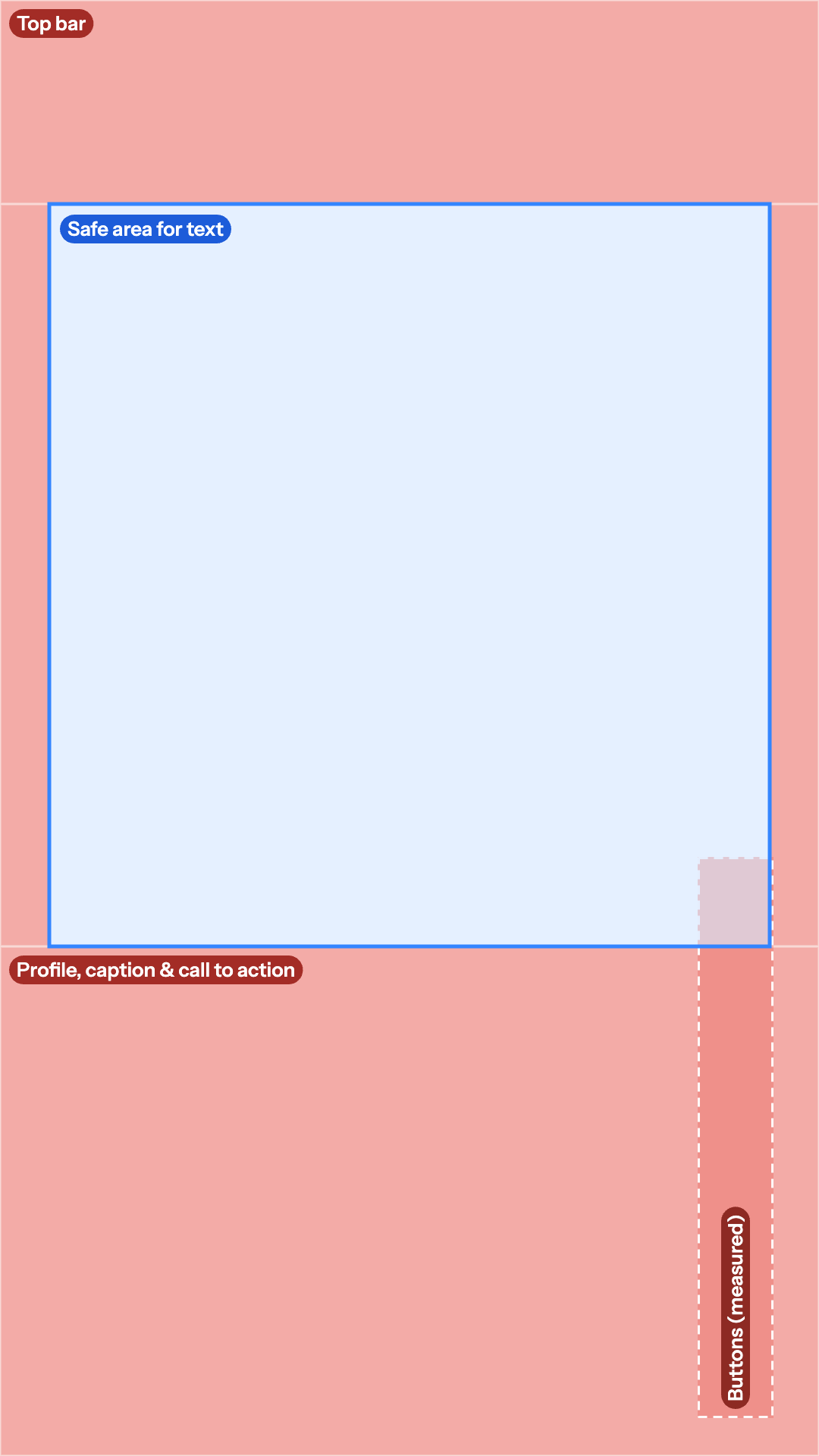
Free Facebook Reels safe zone overlay
A 1080 × 1920 PNG with a transparent background, so your footage shows through while you edit.
- Meta's margins: 14% top, 35% bottom, 6% each side
- Buttons measured from the app, dashed
- Safe area for text outlined in blue
Other apps: TikTok · Instagram Reels · YouTube Shorts · Instagram Story · all four in one
Check a frame from your edit against it: drop a still or the finished video and the overlay is drawn on top.
Drop a 9:16 frame or video
Or paste an image with Ctrl+V or ⌘V. PNG, JPG, WebP, MP4, MOV or WebM. Your file stays on your device.
No file yet? Download the transparent Facebook Reels template (1080×1920 PNG).
Example: a Short Mark Studios edited. This is the 540-pixel still from our site, so it is smaller than a real 1080 × 1920 export.
0:00
Platform
Show
The PNG is drawn in your browser at your file's size. Overlay only is a 1080 × 1920 transparent template you can drop on an editing timeline.
Facebook Reels safe zone dimensions
| Platform | Top | Bottom | Left | Right | Safe area | Source |
|---|---|---|---|---|---|---|
| Facebook Reels | 14% (269 px) | 35% (672 px) | 6% (65 px) | 6% (65 px) | 950 × 979 px | Meta Ads Guide: Facebook Reels |
Meta's ads guide for Facebook Reels says to consider leaving roughly 14% of the top, 35% of the bottom and 6% on each side free from text, logos and other key elements, so they aren't cropped or covered by the profile icon or call-to-action. On a 1080 × 1920 frame that is 269 pixels at the top, 672 at the bottom and 65 on each side, which leaves a 950 × 979 pixel safe area: the blue box on this template. Meta gives Instagram Reels and both apps' Stories the same three numbers.
Meta gives no number for the like, comment, share and send buttons, so we measured them from the screenshots Facebook shows on the App Store: they sit 920 to 1,020 pixels across and 1,130 to 1,870 pixels down, which starts about 118 pixels above Meta's 35% line. The template draws them with a dashed outline. Keep text at the bottom of the safe area left of about 920 pixels. Instagram's buttons start higher, about 970 pixels down, so a reel that clears them clears Facebook's too: the Instagram Reels safe zone template draws them.
Meta's Reels ad specs list a 1440 × 2560 resolution, the same 9:16 shape. Scale the template up to fill a 1440 × 2560 canvas and the margins stay in proportion: about 358 pixels at the top, 896 at the bottom and 86 on each side. The numbers are Meta's for Reels ads, which play in the same Reels viewer under the same profile name, caption and buttons; Meta publishes no separate safe zone for ordinary reels. To test the file itself, including the stricter rules scheduling tools post under, use the Facebook video checker.
What we measured ourselves
| Platform | Element | Measured position | Screenshot |
|---|---|---|---|
| Facebook Reels | Like, comment, share and send buttons | 920–1,020 across, 1,130–1,870 down | Facebook on the App Store |
| Facebook Reels | Progress bar | Not shown in the screenshots we measured | Facebook on the App Store |
How to use the template in your editor
The PNG is a guide, not part of your video: put it on the top track, place text and faces inside the blue box, then switch it off before you export.
- CapCut: on the desktop app, import the PNG, drag it onto a track above your video and stretch it to fill the 9:16 canvas. On the phone, tap Overlay, then Add overlay, pick the PNG and pinch it to fill the frame. Delete it before you export.
- Premiere Pro: drag it to the top video track, right-click it and choose Set to Frame Size. Turn off that track's eye icon before you export.
- DaVinci Resolve: drop it on a track above your footage; on a 1080 × 1920 timeline it already fits. Disable the track before you render.
- Final Cut Pro: connect it above the primary storyline, then select it and press V to disable it before you share.
- Canva: upload it to a 1080 × 1920 design, stretch it over the page and lock it while you work. Delete it before you download.
Editing at 720 × 1280 or in 4K? Scale the PNG to fill the frame and the margins stay in proportion.
Sources: Meta Ads Guide: Facebook Reels · screenshots measured: Facebook on the App Store. Read on October 10, 2026.
Embed this template
Teachers, bloggers and course creators can put this facebook Reels safe zone template on their own page for free. Paste the code below into your page's HTML. It loads from markstudios.com, so it stays current when we update the numbers.
Questions, answered.
Anything else? Message Mark and you'll get a written reply within one business day.
What are the Facebook Reels safe zone dimensions?
Meta’s numbers are percentages: leave roughly 14% of the top, 35% of the bottom and 6% of each side clear. On a 1080 × 1920 reel that is 269, 672 and 65 pixels, leaving a 950 × 979 pixel safe area in the middle of the frame.
Where are the Facebook Reels buttons?
In the App Store screenshots we measured, the like, comment, share and send buttons sit 920 to 1,020 pixels across and 1,130 to 1,870 pixels down on a 1080 × 1920 frame. They start about 118 pixels above Meta’s 35% line, so text that runs to the right edge at the bottom of the safe area can end up under the like button.
Is the Facebook Reels safe zone the same as Instagram’s?
The percentages are the same: Meta gives Facebook Reels, Instagram Reels and both apps’ Stories 14% at the top, 35% at the bottom and 6% on each side. The buttons differ. Instagram’s start higher, about 970 pixels down, and further left, at about 880 pixels across, so a reel that clears Instagram’s buttons clears Facebook’s too.
What size should the template be for a 1440 × 2560 reel?
Meta’s Reels ad specs list 1440 × 2560 pixels; 1080 × 1920 is the same 9:16 shape. Scale the PNG to fill the canvas and the margins become about 358 pixels at the top, 896 at the bottom and 86 on each side.
How do I use the template in CapCut or Premiere Pro?
Put the PNG on a track above your video and fill the 9:16 frame with it (in Premiere Pro, right-click it and choose Set to Frame Size; in CapCut on a phone, add it as an overlay and pinch it to fill the frame). Keep text inside the blue box and left of the dashed button column, then hide or delete the overlay before you export.
Rather have your Facebook Reels edited to fit?
Mark Studios edits Reels, TikToks and Shorts with captions placed inside each app’s safe zone, and you work directly with Mark.
- Founder-led US company
- NDAs by default
- Stripe & PayPal payments
- Top Rated on Fiverr